Pick the right debugging tools for your stack
Choosing the best debugging tools for your stack starts with understanding where your code lives. A browser-based frontend, a Python backend, and a C++ system service each demand different eyes on the problem. Using the right tool for the job saves hours of guessing and turns "it works on my machine" into a solvable puzzle.
Frontend and Web
Chrome DevTools remains the gold standard for browser debugging. It lets you inspect the DOM, monitor network requests, and step through JavaScript in real-time. For developers working with React or Vue, extensions like React DevTools add layer-specific insights that the default browser view misses. If your work involves heavy API calls, Postman offers a structured way to test endpoints before they even hit the main application.
Backend and General Purpose
Visual Studio Code (VS Code) has become the default workspace for many developers because its debugging capabilities are built right in. You can set breakpoints, watch variables, and inspect the call stack without leaving the editor. Its marketplace is packed with language-specific extensions, making it a Swiss Army knife for debugging Python, Node.js, and Go applications. For .NET developers, the full Visual Studio IDE provides deeper profiling and diagnostic tools that VS Code doesn't fully replicate.
Mobile and System-Level
Mobile development requires platform-specific tools. Xcode’s debugger is essential for iOS developers, offering memory graph debugging and performance profiling that are critical for keeping apps smooth. Android developers rely on Android Studio’s built-in debugger and profiler to track down memory leaks and UI jank. For low-level system issues, WinDbg from the Windows SDK is the go-to for analyzing crash dumps and understanding how the operating system interacts with your code.
IDEs with built-in debugging power
The best debugging tools are the ones you already use. Integrated Development Environments (IDEs) have moved far beyond simple code editors. Modern IDEs bundle debuggers, profilers, and linters directly into the interface, allowing you to pause execution, inspect variables, and step through code without leaving your workspace. This integration removes the friction of switching between terminals and external tools.
Visual Studio Code
Visual Studio Code (VS Code) dominates the market because it balances speed with flexibility. It ships with robust debugging support for JavaScript, TypeScript, and Node.js out of the box. For other languages, the Visual Studio Marketplace offers a vast ecosystem of extensions that add deep debugging capabilities. You can set breakpoints, watch variables, and inspect the call stack with a few clicks. Its lightweight nature makes it a favorite for full-stack developers who need to switch contexts quickly.
PyCharm
For Python developers, PyCharm is the gold standard. The Professional edition includes a sophisticated debugger that integrates seamlessly with virtual environments and frameworks like Django and Flask. It allows you to inspect complex data structures, evaluate expressions on the fly, and debug remote servers or Docker containers. The Community edition offers solid basic debugging features, but the advanced features in the paid version save significant time when tracking down logic errors in large codebases.
Chrome DevTools
Frontend debugging happens in the browser, and Chrome DevTools is the primary instrument. While technically a browser feature, it functions as an IDE for the web. You can inspect the DOM, monitor network requests, and debug JavaScript execution in real-time. The Sources panel allows you to set conditional breakpoints and step through asynchronous code, which is often the hardest part of frontend development. It is an essential tool for any developer working on web interfaces.


As an Amazon Associate, we may earn from qualifying purchases.
Lightweight debugging tools that run in the terminal or browser
Sometimes you don't need a heavy IDE to find a bug. Sometimes you just need a quick terminal command or a browser window to see what's happening under the hood. These lightweight tools are fast, specialized, and perfect for quick checks or remote server troubleshooting.
Chrome DevTools for frontend debugging
Chrome DevTools is the standard for frontend debugging. It runs directly in your browser and lets you inspect HTML, CSS, and JavaScript in real time. You can pause code execution, watch variables, and monitor network requests without leaving your browser window.
GDB and LLDB for system-level debugging
For lower-level languages like C, C++, and Swift, GDB (GNU Debugger) and LLDB are the go-to command-line tools. They let you step through code line by line, inspect memory addresses, and analyze crash dumps. These tools are essential for embedded systems development and when you need to understand exactly where a program is failing at a granular level.

Open your terminal and type the debugger command followed by your executable file. For example, gdb ./myapp or lldb ./myapp.
Use the break command to pause execution at a specific line of code. This lets you inspect the state of your program right before the bug occurs.
Use next to move to the next line or step to go into a function. Watch variables change in real time to see where the logic goes wrong.
These tools might feel less polished than a full IDE, but they offer speed and precision that larger environments can't always match. Whether you're chasing a memory leak in C or a rendering glitch in Chrome, these lightweight options are worth keeping in your toolkit.
Bug tracking tools for team workflows
Finding the bug is only half the job. The other half is making sure it stays fixed. This is where bug tracking tools like Jira, Linear, or GitHub Issues come in. They act as the central nervous system for your team, connecting the dots between a developer’s local console and the final deployed product.
When you’re deep in the weeds of Chrome DevTools or stepping through code in VS Code, context is everything. Modern bug trackers solve this by letting you paste a stack trace, a video of the crash, or a direct link to the problematic commit right into the ticket. This eliminates the back-and-forth Slack messages that usually clutter up the process. Instead of asking "What version was this?", the ticket already has the answer.
Think of the bug tracker as the bridge between debugging and deployment. It ensures that every fix is tested, reviewed, and documented before it hits production. Without this link, you might fix the issue locally but forget to update the codebase, or worse, introduce a new bug while patching the old one. A tight workflow here keeps your team aligned and your code clean.
Checklist for choosing your debugging setup
Finding the right debugging environment is less about collecting every available tool and more about matching your workflow. Whether you are fixing a frontend layout in Chrome DevTools or tracing a memory leak in VS Code, your setup needs to be intuitive and fast.
Use this checklist to audit your current stack. If you are missing more than two of these essentials, it is time to upgrade.

Does your editor like VS Code or PyCharm handle breakpoints natively? You should be able to set a breakpoint, inspect variables, and step through code without leaving the interface. If you are constantly switching to a terminal, your integration is weak.

Not all tools work everywhere. Ensure your primary debugger (like LLDB for Swift or GDB for C++) is properly configured. If you are using a language like Python, confirm that your IDE supports the specific runtime you are targeting.
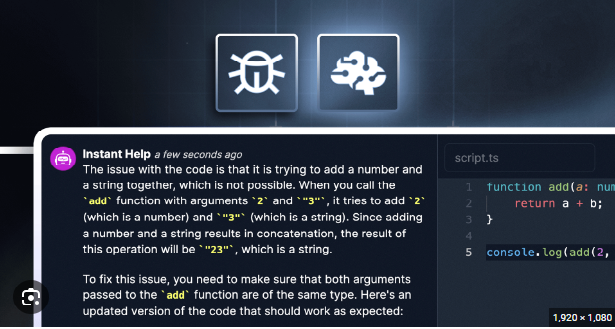
Frontend and backend issues often live in the network tab. Chrome DevTools is the standard here, but tools like Postman are essential for isolating API errors before they hit your UI. If you cannot inspect HTTP requests easily, you will waste time guessing.
For system-level or C++ development, tools like WinDbg are non-negotiable. You need the ability to analyze memory dumps when your application crashes unexpectedly. Without this, you are debugging blind when production issues occur.
Local debugging is only half the battle. Ensure you have a cloud-based monitor like Airbrake or Sentry integrated. These tools catch errors in production and provide stack traces that let you reproduce issues locally.


As an Amazon Associate, we may earn from qualifying purchases.
Frequently asked questions about debugging tools
Debugging tools are software programs designed to identify, test, and fix issues within other applications. They provide a systematic way to troubleshoot code by showing you exactly what the program is doing, including memory usage, variable states, and execution flow. Instead of guessing where a bug might be, these tools give you the data you need to find it quickly.
Is VS Code a debugging tool?
Visual Studio Code (VS Code) is much more than just an editor; it has robust, built-in debugging support for JavaScript, TypeScript, and Node.js. For other languages, you can extend its capabilities using the Visual Studio Marketplace. There are countless extensions available that add debugging support for Python, C++, Java, and more, making VS Code a central hub for many developers' debugging workflows.
Which is the best HTML debugging tool?
Chrome DevTools is the industry standard for debugging HTML, CSS, and JavaScript. It allows you to inspect elements, modify styles in real-time, and analyze network requests directly in your browser. While other tools like ReSharper or PyCharm Debugger are excellent for backend or specific language tasks, Chrome DevTools remains the go-to for front-end HTML issues.

No comments yet. Be the first to share your thoughts!