Why debugging tools matter now
Software has grown too complex for intuition alone. Modern applications span microservices, distributed databases, and third-party APIs, creating a web of dependencies where a single failure can ripple across the entire system. In this environment, manual log reading is no longer a viable strategy. It is slow, error-prone, and often misses the root cause buried deep in the stack trace.
This is why selecting the right debugging tools is critical for developer productivity. The right tool doesn't just show you where the code broke; it helps you understand why it broke by providing context, visualizing data flow, and isolating variables. Without them, developers spend hours chasing ghosts instead of shipping features.
The goal isn't to find every bug immediately, but to reduce the time between error and resolution. By leveraging specialized tools, you turn debugging from a reactive chore into a systematic process. This section explores the specific capabilities that make certain tools stand out in 2026, focusing on concrete features that save time and reduce frustration.
Top IDE recommendations for debugging
Choosing the right Integrated Development Environment (IDE) often comes down to how well it handles the messy parts of coding. While you can debug code in any text editor, dedicated IDEs offer visual breakpoints, variable inspection, and call stacks that save hours of guesswork. Here are the three heavyweights that dominate the landscape for developers in 2026.
Visual Studio Code
VS Code remains the most popular choice for a reason. It is lightweight, free, and has an ecosystem of extensions that turns it into a debugging powerhouse for almost any language. Its integrated terminal and inline variable display make it easy to see what is happening in your code without leaving the editor. It is particularly strong for web development, JavaScript, and Python workflows.
IntelliJ IDEA
For Java and Kotlin developers, IntelliJ IDEA is the gold standard. It offers deep code analysis and intelligent debugging features that understand the structure of your application. The debugger can inspect complex objects and navigate through code with precision. While the full version costs money, the community edition is free and sufficient for many basic debugging tasks.
Visual Studio
Microsoft’s flagship IDE is built for .NET and C++ development. It provides a rich, visual debugging experience with features like live debugging, memory diagnostics, and performance profiling. If you are working on large-scale enterprise applications or game development, Visual Studio’s robust tooling is hard to beat. It is resource-heavy, but the debugging capabilities are unmatched for specific Microsoft stacks.
| IDE | Best For | Price | Key Debugging Features |
|---|---|---|---|
| VS Code | Web, JS, Python | Free | Breakpoints, Inline Vars, Extensions |
| IntelliJ IDEA | Java, Kotlin | Paid/Free Community | Smart Step Into, Object Inspection |
| Visual Studio | .NET, C++ | Paid/Free Community | Live Debugging, Memory Diagnostics |


As an Amazon Associate, we may earn from qualifying purchases.
Specialized debugging tools for specific tasks
Frontend debugging often starts with the browser itself. Chrome DevTools is the industry standard for inspecting HTML, CSS, and JavaScript in real time. It allows you to pause execution, inspect DOM changes, and monitor network requests without leaving your workflow. For more complex state management issues, extensions like React DevTools provide a visual breakdown of component hierarchies and props, making it easier to spot where data flow breaks down.
When your application talks to a server, Postman becomes indispensable. Instead of guessing why an API call failed, you can construct requests, view raw response bodies, and analyze latency metrics. This is crucial for isolating whether a bug originates in your frontend logic or on the backend service. Postman also allows you to save collections of requests, making it easier to reproduce complex multi-step interactions that trigger errors.
For system-level issues, such as memory leaks or process hangs, tools like Process Explorer (on Windows) or lsof (on Linux) provide a granular view of what your application is doing at the OS level. These utilities let you see open file handles, network connections, and memory usage per process, offering visibility that standard console logs simply cannot provide.


As an Amazon Associate, we may earn from qualifying purchases.
Bug tracking and code review
Debugging doesn't stop when you fix a crash. You need to ensure that fix doesn't break something else later. This is where bug tracking tools and code review services become essential. They turn isolated fixes into a disciplined workflow that prevents regressions.
Bug trackers like Jira, Linear, and GitHub Issues let you log errors with full context. When a developer spots a bug, they create a ticket. This ticket links to the specific code change, the error log, and the steps to reproduce it. Without this link, bugs often get lost in Slack chats or forgotten emails.
Code review services act as a quality gate. Before any code hits production, peers review the changes. Tools like Gerrit or Review Board help teams catch logic errors that automated tests might miss. It's a second pair of eyes on your debugging solution.
When these two systems work together, they create a safety net. A bug is logged, fixed, reviewed, and then verified. This cycle keeps your codebase stable and your debugging efforts from going to waste.


As an Amazon Associate, we may earn from qualifying purchases.
How to choose the right debugging tools
Picking a debugging tool isn't about finding the most feature-rich option; it's about finding the one that fits your stack and team size. A solo Python developer needs different gear than a large Java team. Use this checklist to evaluate your options before committing to a workflow.

Start by ensuring the tool supports your primary language. VS Code and Chrome DevTools are universal favorites, but specialized tools like LLDB or GDB are essential for C++ or embedded systems. If your stack is niche, check for official SDK support first.
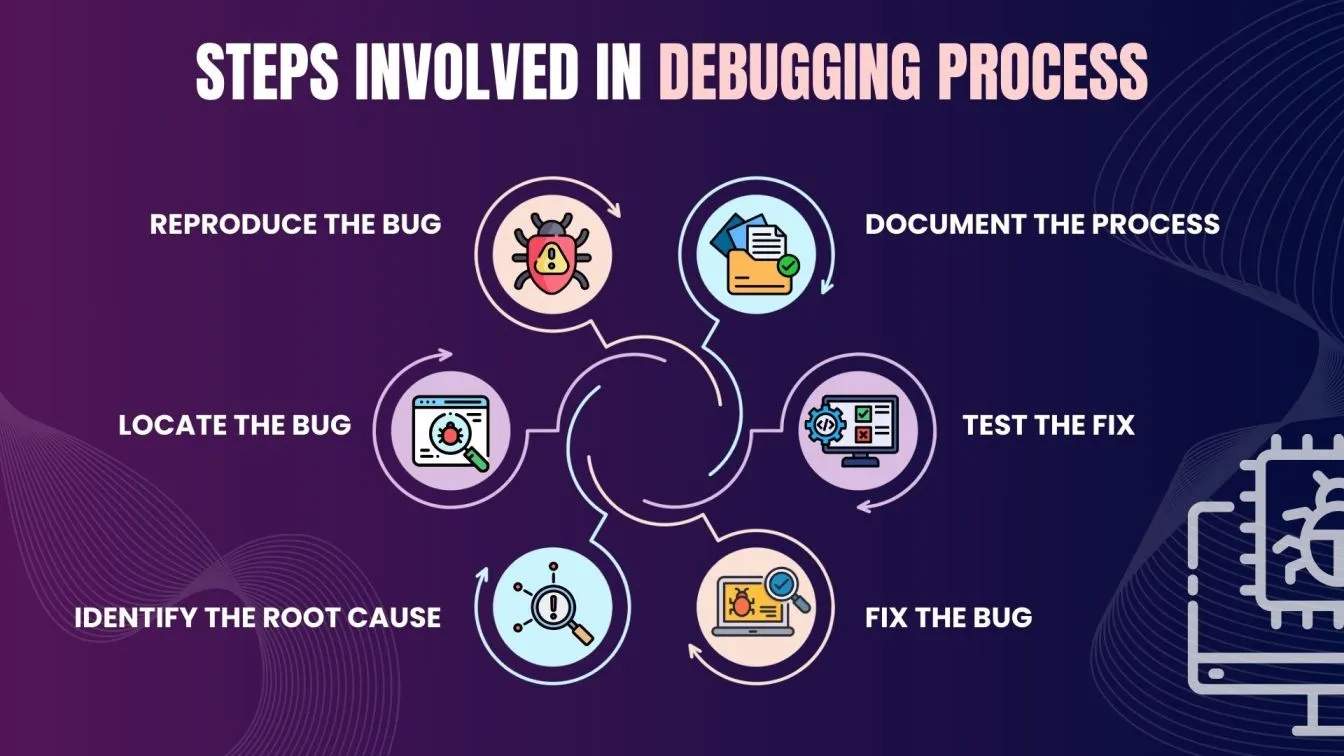
Debugging is often a team sport. If you work in a distributed team, prioritize tools with remote debugging capabilities and crash reporting integrations. Features like shared session viewing or automated error aggregation save hours of back-and-forth communication.
A tool that lives in a separate window creates friction. Look for IDE-integrated debuggers or browser extensions that work seamlessly with your existing workflow. The best tools feel invisible, allowing you to focus on the code rather than the interface.


As an Amazon Associate, we may earn from qualifying purchases.
Don't overcomplicate the decision. Start with the basics, test the tool on a small feature, and scale up if it proves its worth. The right tool should make you faster, not just smarter.
Frequently asked questions about debugging tools
What is the best debugging tool for beginners?
Visual Studio Code (VS Code) is widely considered the best starting point for new developers. Its built-in debugger allows you to set breakpoints, step through code, and inspect variables without needing complex command-line configurations. The extensive extension marketplace also means you can easily add support for Python, JavaScript, C++, and other languages as your skills grow.
Do I need a separate debugger or is my IDE enough?
For most web and application development, your IDE is sufficient. Tools like Visual Studio Code, PyCharm, and IntelliJ IDEA include robust, integrated debuggers that handle most daily tasks. However, specialized environments like Chrome DevTools for frontend web debugging or WinDbg for low-level Windows kernel debugging often require standalone tools to access deeper system insights.
How do I debug a crash that only happens in production?
Local debuggers can only trace issues that occur on your machine. For production crashes, you need error tracking and crash reporting tools like Raygun or Sentry. These services capture stack traces and user context when an error occurs in the live environment, allowing you to reproduce and fix bugs that are invisible during local testing.
What is the difference between GDB and LLDB?
GDB (GNU Debugger) and LLDB are both command-line debuggers used primarily for systems programming in C, C++, and Rust. GDB is the older, more traditional standard with broad compatibility. LLDB, developed by Apple, is generally faster and has a more modern architecture, making it the default choice for macOS and iOS development, though it is also widely used in Linux environments.

No comments yet. Be the first to share your thoughts!