What makes a debugging tool effective
Debugging tools are software programs used to identify, test, and debug issues within other programs. They provide a systematic approach to finding errors, but not all tools are created equal. The best debugging tools for 2026 share three core traits: they quickly pinpoint errors, accurately diagnose the root cause, and fit seamlessly into your existing workflow.
Speed of identification is the first hurdle. A good tool narrows down the search space immediately, highlighting the exact line of code or memory address where something went wrong. This saves hours of manual tracing through logs or stepping through functions one by one.
Accuracy in root cause analysis is equally critical. Modern debugging tools, especially AI assistants, don't just show you the error; they explain why it happened. They analyze context, dependencies, and runtime behavior to suggest fixes that actually work, rather than just patching symptoms.
Finally, integration matters. If a tool requires leaving your IDE or disrupting your flow, developers won't use it consistently. The most effective debugging tools embed directly into environments like VS Code or Visual Studio, offering real-time insights without breaking your concentration. This seamless integration ensures that debugging becomes a natural part of development, not a separate, tedious task.
Traditional IDE debugging features
Established integrated development environments (IDEs) provide the backbone for manual debugging. While AI assistants have gained ground, tools like Visual Studio Code, PyCharm, and browser DevTools remain essential for runtime analysis. They offer granular control over execution flow, allowing developers to inspect variables and step through code line by line.
VS Code handles JavaScript and TypeScript natively, while its marketplace extensions support Python, C++, and Go. JetBrains’ PyCharm offers deep static analysis alongside its debugger, making it a favorite for Python projects. For web development, Chrome DevTools allows direct inspection of the DOM and network requests, bridging the gap between code and the rendered page.
These tools share common strengths: robust breakpoint management, variable inspection, and call stack navigation. They do not guess what the bug might be; they show you exactly what the code is doing. This precision is why traditional debugging tools remain the primary choice for complex logic errors.

Feature comparison
The table below compares the core debugging capabilities of the most widely used traditional debugging tools.
| Tool | Primary Language | Breakpoint Features | Performance Overhead |
|---|---|---|---|
| Visual Studio Code | Multi-language | Conditional, logpoint, hit count | Low |
| PyCharm | Python | Conditional, exception, remote | Medium |
| Chrome DevTools | JavaScript/HTML | DOM, XHR, event listener | Low |
Related hardware
A comfortable workspace supports long debugging sessions. Consider these essentials for your setup.


As an Amazon Associate, we may earn from qualifying purchases.
AI-Powered Debugging Assistants
AI debugging tools shift the workflow from manual line-by-line tracing to assisted error analysis. Instead of staring at a stack trace, you describe the failure, and the assistant suggests fixes. Tools like Graphite Agent and ChatDBG automate the heavy lifting of pattern recognition across large codebases.
Graphite Agent excels at code review and static analysis, catching issues before they hit production. ChatDBG integrates directly into your environment, offering interactive assistance when you hit a runtime error. These tools act like a senior developer pair-programming with you, reducing the time spent on syntax errors and logic bugs.
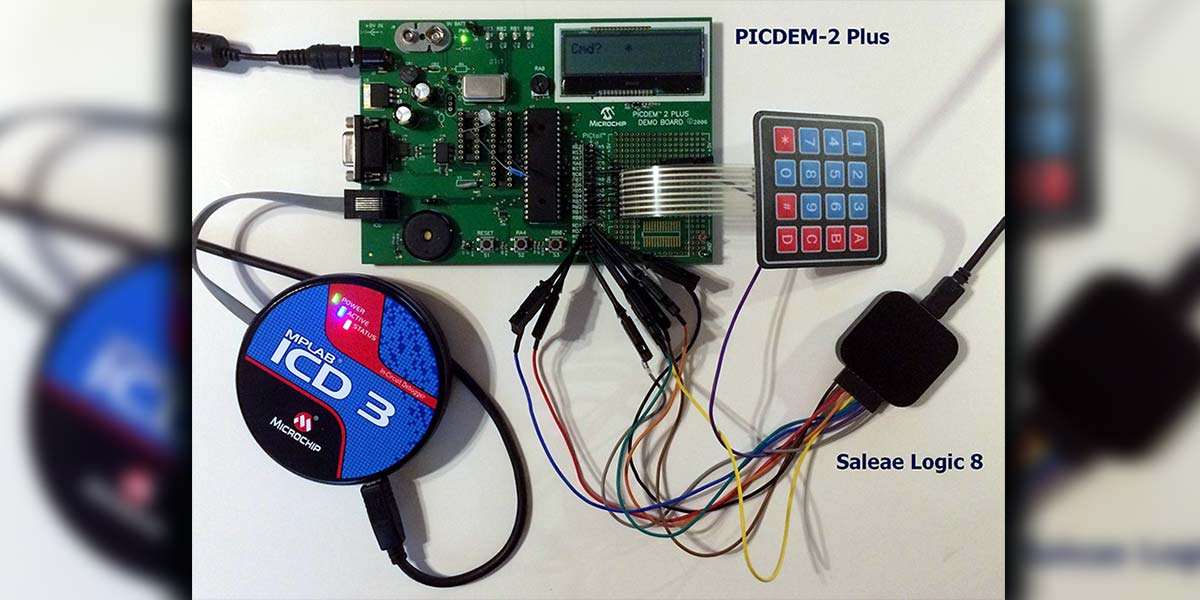
While traditional IDEs remain essential for runtime analysis, AI assistants handle the repetitive search-and-replace tasks. This hybrid approach lets you focus on complex problem-solving while the AI manages the noise. For 2026, the best debugging strategy combines the precision of IDEs with the speed of AI assistants.
When to use AI versus standard tools
Choosing the right debugging tool depends on the nature of the error. AI assistants and standard IDEs serve different purposes in a developer’s workflow. Understanding when to use each can save time and reduce frustration.
AI-powered debugging tools excel at recognizing common error patterns and generating quick fixes. They are ideal for boilerplate errors, syntax mistakes, or well-documented issues. Tools like ChatDBG or Graphite Agent can analyze code snippets and suggest solutions in seconds. Use AI when you need a fast answer to a recurring problem.
Standard IDEs like Visual Studio Code, GDB, or LLDB provide granular control over code execution. They allow you to step through code, inspect memory, and trace complex logic flows. Use an IDE when debugging race conditions, memory leaks, or system-level issues that require a deep understanding of the runtime environment.

For complex projects, combining AI and IDEs offers the best of both worlds. Use AI to quickly identify and fix surface-level errors, then switch to an IDE for deeper investigation. This hybrid approach ensures you address both immediate issues and underlying root causes efficiently.
Frequently asked questions about debugging tools
What is the best debugging tool?
There is no single winner for every developer. For AI-powered assistance, tools like Graphite Agent and ChatDBG offer interactive code review and debugging help. For traditional runtime analysis, Visual Studio Debugger, GDB, and Chrome DevTools remain the industry standard for deep inspection.
Is VS Code a debugging tool?
Visual Studio Code is an IDE that includes robust built-in debugging capabilities. It supports JavaScript, TypeScript, and Node.js out of the box. You can extend its functionality for other languages using extensions from the Visual Studio Marketplace, making it a versatile hub for most debugging tasks.
Which is the best HTML debugging tool?
For frontend issues, Chrome DevTools is the essential choice for inspecting HTML and CSS in real-time. For production error tracking, tools like Rollbar, Airbrake, or Honeycomb help identify and monitor HTML-related errors across your user base.

No comments yet. Be the first to share your thoughts!