Where editors are heading
IDE choices in 2026 come down to how much you want the tool to do for you. We've moved past simple text editing into a space where your editor is either a thin client for a cloud environment or a heavy-duty AI partner. The shift to distributed teams means if your setup doesn't handle remote containers natively, it's essentially obsolete.
Cross-platform compatibility is no longer a "nice-to-have" but a necessity. Developers expect to work on macOS, Windows, and Linux without significant friction. The challenge for IDE vendors is balancing feature richness with performance, especially as codebases grow larger and more complex. Predicting the future with certainty is impossible, but focusing on the next few years allows us to assess where current trajectories are leading.
This guide focuses on three prominent contenders: Visual Studio Code, the widely popular and extensible editor; JetBrains’ suite of IDEs, known for their power and language-specific features; and Cursor, a newer entrant betting heavily on AI-first development. Each offers a distinct approach to the developer experience, and the "best" choice depends heavily on individual needs and priorities.
The increasing reliance on cloud-based development environments like GitHub Codespaces and Gitpod will influence IDE choices. Tools that can easily integrate with these platforms will gain an advantage. We’ll be looking at how these three IDEs stack up in terms of features, performance, debugging capabilities, and overall usability, with an eye towards the demands of a 2026 developer workflow.
VS Code and the extension trap
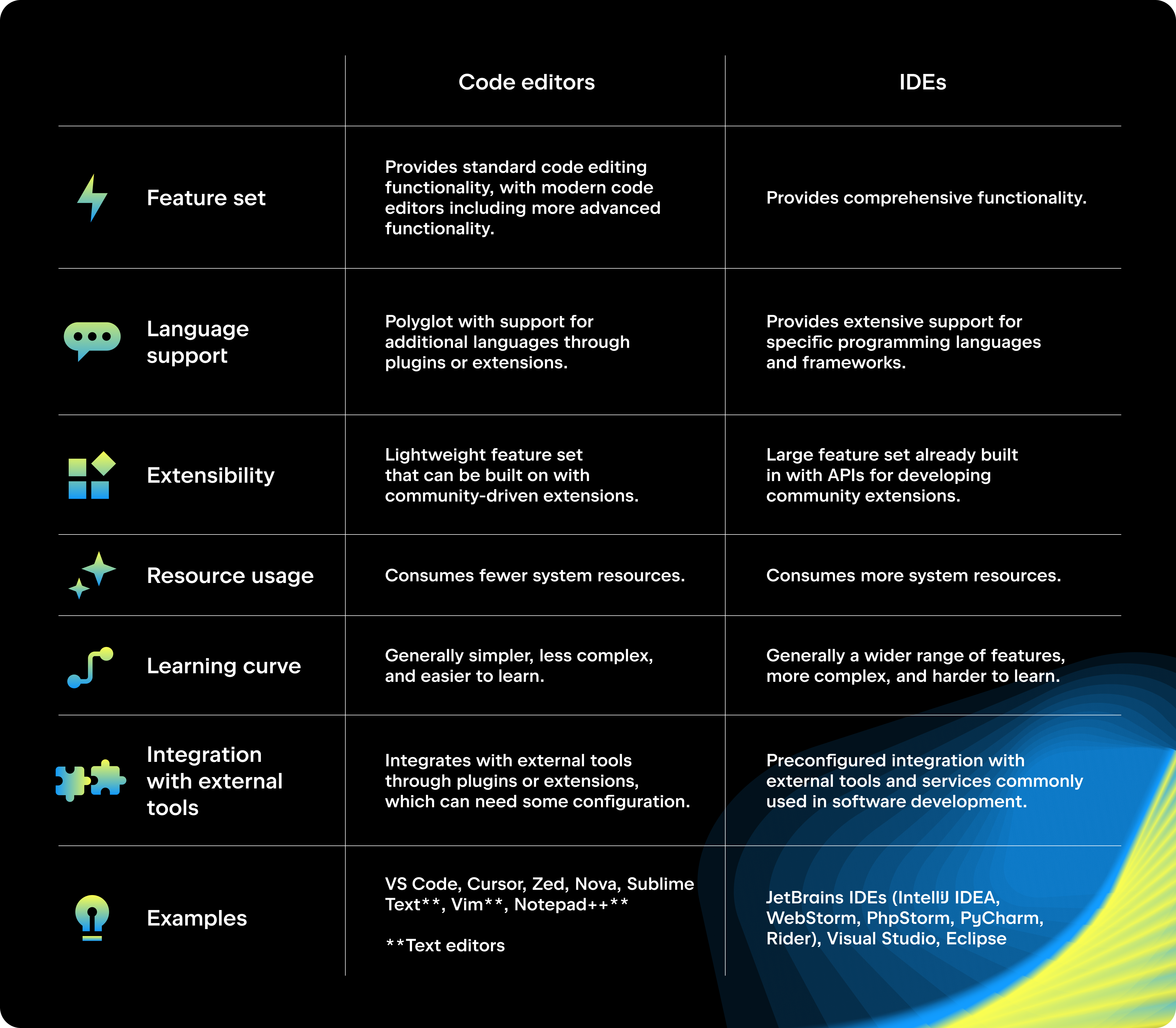
Visual Studio Code has become the dominant force in the code editor market, largely due to its incredibly versatile extension marketplace. This isn’t just about quantity—the quality of extensions available is high, and the community is very active in maintaining and improving them. Developers can effectively tailor VS Code to their specific needs, adding support for languages, debuggers, linters, and virtually any other tool imaginable.
The Python extension, for example, provides comprehensive debugging support, IntelliSense, and code formatting. Similarly, extensions for JavaScript, C++, and other languages offer similar levels of functionality. VS Code's built-in terminal is a major convenience, allowing developers to run commands and scripts without leaving the editor. Git integration is also seamless, with support for common Git operations like committing, branching, and merging.
The downside to this modularity is bloat. If you stack thirty extensions to make VS Code feel like a full IDE, startup times crawl and memory usage spikes. I find it's better to use Profile Switcher to keep different extension sets for Python and React rather than running everything at once.
Beyond core language support, the extension marketplace offers tools for remote development, containerization (Docker), and cloud integration. This flexibility makes VS Code a compelling choice for developers working on a variety of projects and platforms. The active community ensures that new tools and integrations are constantly being added, keeping VS Code at the forefront of the development landscape. Its lightweight nature compared to full-fledged IDEs is also a significant advantage for many.
- Python by Microsoft for IntelliSense and linting
- Python (Microsoft) - Comprehensive Python support
- JavaScript (ESLint) - JavaScript linting and formatting
- C/C++ (Microsoft) - C/C++ language support
- Docker - Docker container management
- Remote - SSH - Remote development over SSH
JetBrains for specialized workflows
JetBrains offers a suite of IDEs, each tailored to specific languages and frameworks. IntelliJ IDEA is the flagship product, excelling in Java and Kotlin development. PyCharm is designed for Python, WebStorm for JavaScript, and so on. This specialization allows JetBrains IDEs to provide a level of intelligence and support that VS Code, with its extension-based model, often struggles to match.
The robust refactoring tools in JetBrains IDEs are a standout feature. They allow developers to safely and efficiently restructure code, rename variables, and extract methods with minimal effort. Intelligent code completion is another strength, providing accurate suggestions based on the project’s context. The built-in debugging capabilities are also excellent, offering features like breakpoint management, variable inspection, and step-by-step execution.
JetBrains takes a "batteries included" approach, meaning that many essential tools and features are built-in, rather than relying on extensions. This can be an advantage for developers who prefer a self-contained environment. However, it also means that JetBrains IDEs tend to be more resource-intensive than VS Code. The costs associated with JetBrains products are also a factor. While there are free Community editions available, the full-featured Professional editions require a subscription.
Licensing models vary depending on the product and subscription type. JetBrains offers individual subscriptions, organizational licenses, and academic discounts. The pricing can be a barrier to entry for some developers, particularly those who are just starting out. However, many developers find that the productivity gains and advanced features justify the cost. In 2023, individual annual subscriptions started around $200, and increased with additional IDEs.
- JetBrains IDEs and their specialties:
- IntelliJ IDEA: Java, Kotlin, Groovy
- PyCharm: Python
- WebStorm: JavaScript, HTML, CSS
- RubyMine: Ruby, Rails
- PhpStorm: PHP
VS Code vs JetBrains: Feature Comparison
| Feature | VS Code | JetBrains |
|---|---|---|
| Code Completion | Relies heavily on extensions for advanced features; generally good for popular languages, but can require configuration. | Provides robust, out-of-the-box code completion, especially strong for JVM languages; intelligent suggestions based on context. |
| Debugging | Excellent debugging support through extensions; supports various debugging protocols and configurations. | Offers powerful, integrated debugging tools with advanced features like conditional breakpoints and expression evaluation; often considered superior for complex debugging scenarios. |
| Refactoring | Refactoring capabilities are available through extensions, quality varies depending on the extension. | Provides comprehensive and reliable refactoring tools with a wide range of options for code restructuring and improvement. |
| Extension Support | Extremely large and active extension marketplace; highly customizable and adaptable to various workflows. | Supports plugins, but the ecosystem is smaller and generally focuses on deeper integration with JetBrains' core functionality. |
| Performance | Generally lightweight and fast, particularly with a minimal set of extensions. | Can be more resource-intensive, especially with large projects; performance can vary depending on the IDE and project size. |
| Language Support | Broad language support through extensions; quality depends on extension maturity. | Excellent support for a wide variety of languages, with particularly strong support for Java, Kotlin, Python, and others. |
| User Interface | Clean and minimalist interface; highly customizable through themes and settings. | Feature-rich and complex interface; can have a steeper learning curve but offers greater control and functionality. |
Qualitative comparison based on the article research brief. Confirm current product details in the official docs before making implementation choices.
Cursor: The AI-First Editor
Cursor is a relatively new player in the IDE space, but it’s making waves with its focus on AI-powered code generation and completion. Unlike VS Code and JetBrains, which have added AI features as an extension of their existing capabilities, Cursor is built from the ground up around large language models. This allows it to offer a more seamless and integrated AI experience.
Cursor can assist with a wide range of coding tasks, from generating boilerplate code to suggesting entire functions. It’s particularly strong at understanding natural language prompts, allowing developers to describe what they want to achieve in plain English. The editor also supports pair programming, allowing developers to collaborate with AI agents to solve complex problems. Code review is another area where Cursor excels, providing automated feedback and suggestions.
However, there are potential concerns about the quality and security of AI-generated code. Developers need to carefully review the code produced by Cursor to ensure that it’s correct and doesn’t introduce vulnerabilities. The reliance on AI also raises questions about intellectual property and licensing. Cursor operates on a subscription-based pricing model, which may not be appealing to all developers.
The team at Cursor is actively working to address these concerns and improve the accuracy and reliability of the AI engine. They’re also focusing on adding support for more languages and frameworks. While Cursor is still evolving, it represents a promising new direction for IDE development. Its AI-first approach could significantly accelerate the coding process and empower developers to build more complex applications.
Debugging Workflows: A Head-to-Head
All three IDEs offer robust debugging capabilities, but they differ in their approach and features. VS Code relies heavily on extensions for debugging support, while JetBrains IDEs have built-in debuggers that are tightly integrated with the language and framework. Cursor’s debugging features are still evolving, but it leverages AI to help identify and fix errors.
Setting breakpoints, inspecting variables, and analyzing the call stack are fundamental debugging tasks that are supported by all three IDEs. JetBrains IDEs often provide more advanced debugging features, such as conditional breakpoints and expression evaluation. VS Code’s debugging experience can vary depending on the extension being used, but it’s generally quite good.
Remote debugging is another important capability, allowing developers to debug applications running on remote servers or containers. VS Code and JetBrains both offer excellent remote debugging support. Cursor is currently focusing on improving its remote debugging capabilities. When debugging a typical Python error, JetBrains' PyCharm offers the most detailed analysis out-of-the-box, while VS Code requires configuring the Python extension. Cursor's AI can sometimes suggest fixes, but requires careful verification.
In practice, the best debugging experience depends on the language and framework being used. JetBrains IDEs are often the preferred choice for complex projects and languages like Java and Kotlin. VS Code is a good all-around option, particularly for web development and scripting languages. Cursor’s AI-powered debugging features hold promise, but it’s still too early to say how it will compare to the established players.
- Debugging Steps (Common to all IDEs):
- Set a breakpoint in the code.
- Run the application in debug mode.
- Inspect variables and the call stack when the breakpoint is hit.
- Step through the code line by line.
- Analyze the error message and identify the root cause.
Performance and Resource Usage
Performance and resource usage are critical considerations when choosing an IDE. VS Code generally has the lowest overhead, making it a good choice for developers with limited hardware. JetBrains IDEs tend to be more resource-intensive, particularly when working on large projects. Cursor’s performance is comparable to VS Code, but it can be affected by the AI engine.
Startup time is another important metric. VS Code typically starts up quickly, while JetBrains IDEs can take longer, especially if many plugins are installed. Memory usage also varies significantly. JetBrains IDEs often consume more memory than VS Code, which can be a problem on systems with limited RAM. CPU load can also be a factor, particularly when performing computationally intensive tasks like code analysis and debugging.
Optimizing performance can involve disabling unnecessary extensions, increasing the heap size (for JetBrains IDEs), and upgrading hardware. It’s also important to keep the IDE up to date, as performance improvements are often included in new releases. Performance is subjective and dependent on hardware configuration, project size, and individual usage patterns.
Benchmarking results can vary, but generally, VS Code exhibits the lowest resource consumption during idle states. JetBrains' performance scales with project complexity, and can become sluggish with very large codebases. Cursor's AI processing adds overhead, but is generally manageable on modern hardware.
The Future of IDEs: What to Expect
The future of IDEs will be shaped by several key trends, including the continued rise of AI, the increasing adoption of cloud computing, and the emergence of new programming languages and paradigms. AI-powered code completion, debugging, and refactoring will become increasingly sophisticated, automating many of the mundane tasks that developers currently perform.
Cloud-based IDEs will become more prevalent, allowing developers to work from anywhere with an internet connection. Integration with cloud platforms will also become more seamless, enabling developers to easily deploy and manage their applications. The demand for cross-platform compatibility will continue to grow, forcing IDE vendors to prioritize support for multiple operating systems.
VS Code is likely to maintain its dominance in the short term, thanks to its extension ecosystem and lightweight nature. JetBrains IDEs will continue to appeal to developers who value power and precision. Cursor’s AI-first approach could disrupt the market if it can deliver on its promise of significantly accelerating the coding process. Ultimately, the best IDE for a particular developer will depend on their individual needs and preferences.
Essential Peripherals for Your VS Code, JetBrains, and Cursor IDE Setup

Tactile Quiet Switches for a precise typing experience. · Backlit keys with adjustable illumination for low-light environments. · Multi-device connectivity via Bluetooth and USB-C for cross-platform compatibility.
This keyboard offers a premium typing experience with customizable backlighting and robust connectivity, ideal for intensive coding tasks.

27-inch 4K UHD WLED display for sharp, detailed visuals. · Wide color gamut support for accurate color representation. · Extensive connectivity options including USB-C with Power Delivery.
The Dell UltraSharp U2723QE provides exceptional clarity and color accuracy, essential for detailed code review and multi-window development setups.

Ergonomic design with PostureFit SL for lumbar support. · Adjustable components for personalized fit and comfort. · Breathable mesh material for temperature regulation during long sessions.
The Herman Miller Aeron chair is engineered for superior ergonomic support, minimizing fatigue and promoting healthy posture during prolonged coding periods.

Industry-leading noise cancellation for distraction-free focus. · 30-hour battery life for extended usage on a single charge. · High-quality audio reproduction for clear communication and media consumption.
These headphones deliver unparalleled noise cancellation and long battery life, creating an immersive and focused work environment for developers.

Hot-swappable mechanical switches for easy customization. · QMK/VIA compatibility for advanced key mapping and macros. · RGB backlit keys with programmable effects.
The Keychron K8 Pro offers extensive customization options, including hot-swappable switches and programmable layouts, to tailor the keyboard to individual coding preferences.
As an Amazon Associate I earn from qualifying purchases. Prices may vary.

No comments yet. Be the first to share your thoughts!