how react 19 rendering changed
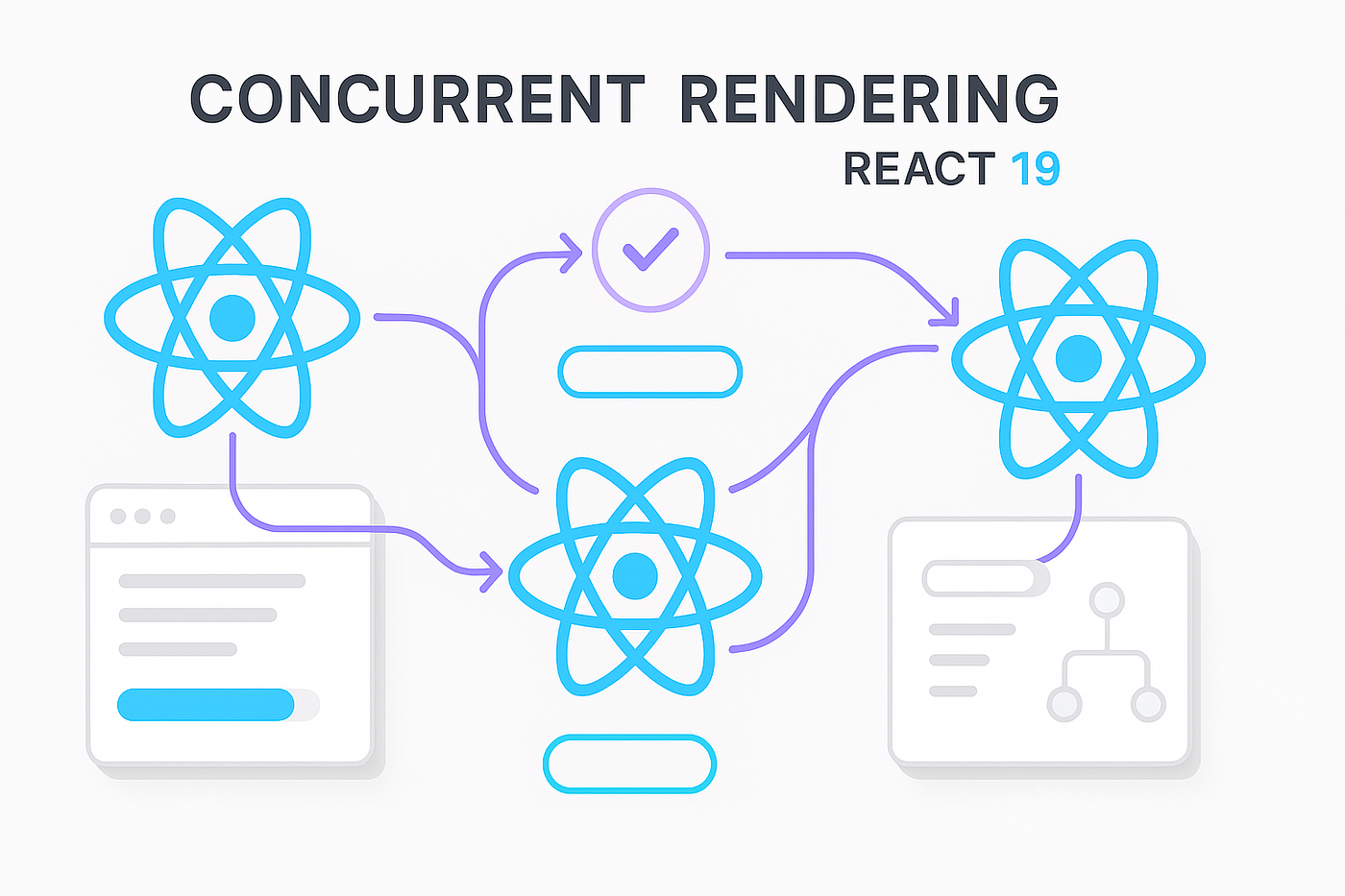
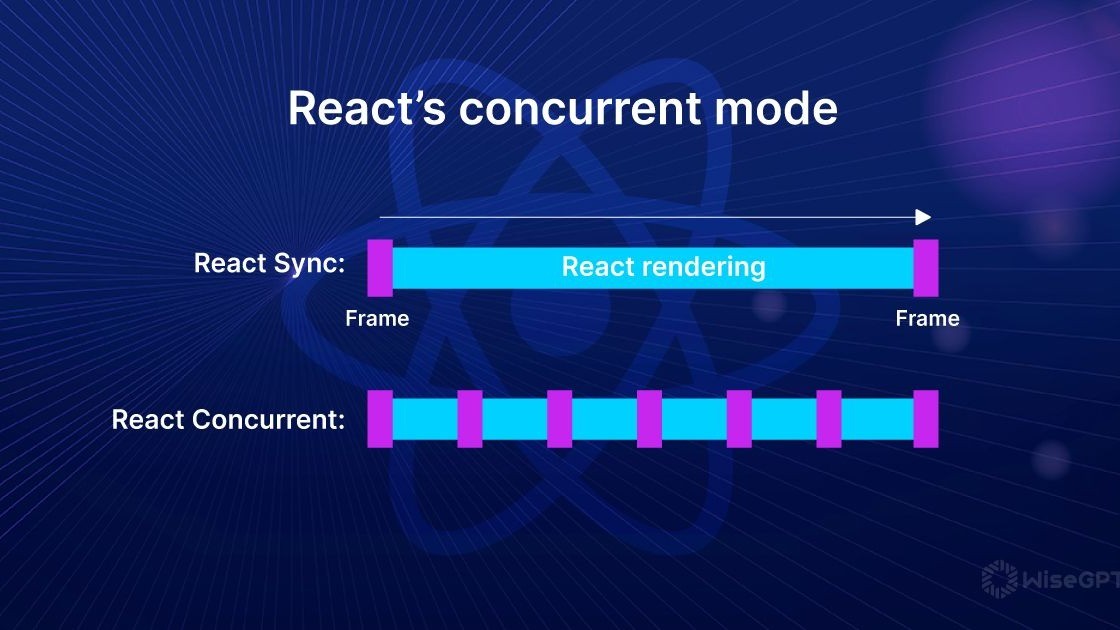
React 19 brought significant changes to how rendering works, leaning heavily into what they call concurrent rendering. The core idea isn’t about making things faster in all cases, but about making React more responsive. Before, React would generally complete one rendering task before moving on to the next. Now, it can interrupt, pause, resume, and prioritize different tasks, much like your operating system manages processes.
This shift prioritizes user interactions. Think about typing in a search box: you want immediate feedback as you type, even if a large data fetch is still in progress. Concurrent rendering allows React to update the search box while deferring the completion of the data fetch. It’s a move away from a 'render everything at once' approach to a more flexible, interruptible one.
This shift makes apps feel smoother, but it breaks the assumption that code runs in a straight line. Since React can now pause a render to handle a click, your components might see inconsistent state if they aren't built for concurrency. You have to stop thinking about renders as a sequence of snapshots and start treating them as interruptible tasks.
handling unexpected state updates
One common bug in React 19 arises from state updates happening at unexpected times during concurrent rendering. React’s prioritization engine can sometimes lead to updates being applied in a different order than you might anticipate, particularly in deeply nested component trees. Imagine a component that relies on data from a parent component; if the parent re-renders and updates its state, the child might receive an outdated value before the updated one.
Consider a search input with debouncing. You want to delay sending the search query to the server until the user stops typing for a moment. Without concurrent rendering, this was relatively straightforward. Now, React might interrupt the debouncing timer to handle higher-priority updates, leading to multiple, rapid updates being sent to the server. This isn’t a flaw in your code, necessarily, but a consequence of React’s new rendering model.
The `useTransition` and `useDeferredValue` hooks are your friends here. `useTransition` lets you mark state updates as non-urgent, allowing React to prioritize more important tasks. `useDeferredValue` lets you defer updating a value until after more urgent updates have completed. These tools give you finer-grained control over when and how state updates are applied, helping you avoid unexpected behavior. Understanding how to use these hooks is fundamental to debugging concurrent rendering issues.
race conditions and lost updates
Concurrent rendering can expose race conditions and lost updates, although these aren’t new problems to React. They were always possible, but concurrent rendering makes them more likely to occur and more visible during development. A race condition happens when multiple updates to the same state variable are applied concurrently, and the final result depends on the unpredictable order in which those updates are processed.
For example, imagine two buttons incrementing a counter. If both buttons are clicked rapidly, both updates might attempt to read the counter’s current value before the first update has been applied, resulting in both updates using the same initial value and effectively losing one of the increments. This is especially true if the component is re-rendering frequently due to concurrent updates.
To prevent this, use functional updates with `setState`. Instead of `setState(state + 1)`, use `setState(prevState => prevState + 1)`. This guarantees that you’re always working with the most recent state value. For more complex state management, consider using a reducer with the `useReducer` hook. Reducers provide a centralized and predictable way to handle state updates, reducing the risk of race conditions. It’s about making your state updates more deterministic.
Content is being updated. Check back soon.
preventing layout thrashing
Layout thrashing is a performance killer, and concurrent rendering can sometimes make it worse. Layout thrashing occurs when JavaScript code forces the browser to recalculate layout repeatedly in a short period. This happens when you read layout properties (like `offsetWidth` or `offsetHeight`) and then immediately make changes that require the browser to recalculate the layout. Each read-write cycle is expensive.
React’s rendering process, especially with concurrent rendering, can trigger multiple layout calculations in quick succession, particularly if you’re not careful about how you access and modify the DOM. Imagine a component that measures the height of an element and then updates its style based on that height. If this happens during a re-render, it can trigger a cascade of layout calculations.
To avoid layout thrashing, minimize DOM reads and writes. Use `useMemo` and `useCallback` to memoize values and functions that depend on DOM properties. This prevents unnecessary recalculations. Consider techniques like virtualization for rendering large lists, which only renders the visible items, reducing the amount of DOM manipulation. Profiling your application with the React DevTools is essential to identify and address layout thrashing issues.
using react devtools
The React DevTools are your primary weapon for debugging concurrent rendering issues. The profiler tab is particularly useful. It allows you to record component renders and identify which components are taking the longest to render. This helps you pinpoint performance bottlenecks and areas for optimization. Pay attention to components that are re-rendering unnecessarily.
The component inspector lets you examine the props and state of each component in real-time. You can see how these values change during rendering, which can help you understand why a component is behaving unexpectedly. Look for unexpected state updates or prop changes that might be causing problems.
The DevTools profiler shows exactly which components suspended or took too long during a transition. Use the 'Highlight Updates' feature to see which parts of the tree flicker during a background fetch. If a component re-renders five times for a single input change, that's your bottleneck.
fixing act warnings
The `act` function is used in React testing to ensure that all state updates are processed synchronously. In concurrent rendering scenarios, you might encounter `act` warnings when updating state outside of a render phase. These warnings indicate that you’re violating the rules of React and could lead to unpredictable behavior.
A common cause of `act` warnings is updating state in response to a side effect, such as a network request. React expects state updates to happen within a render phase or a lifecycle method. To resolve this, use the `useEffect` hook to perform side effects and update state within its callback function. This ensures that the state update is properly batched and processed by React.
The underlying principle is about maintaining a consistent and predictable state management flow. Don't directly modify state outside the controlled environment provided by React's rendering lifecycle. Review your code for any instances where you're directly manipulating state without using `setState` or a similar mechanism within a render phase or effect.
when to disable concurrent features
Concurrent rendering isn’t a silver bullet. There are scenarios where it might be better to disable it, especially for legacy codebases or complex integrations. If you’re encountering significant compatibility issues with third-party libraries or if you’re struggling to debug unexpected behavior, rolling back to the previous rendering model might be the most pragmatic solution.
You can disable concurrent rendering by setting the `react.auto_schedule` configuration option to `false`. This will revert React to its previous synchronous rendering behavior. However, keep in mind that you’ll lose the benefits of concurrent rendering, such as improved responsiveness and prioritization.
If your app relies on heavy side effects inside the render body or legacy libraries that touch the DOM directly, turning off concurrency saves weeks of debugging. You can always re-enable it once you've refactored your state logic to be pure.

No comments yet. Be the first to share your thoughts!