Why debugging tools matter now
Modern codebases are sprawling. A single feature might touch dozens of microservices, third-party APIs, and shared libraries. Without the right debugging tools, finding a bug is like looking for a specific grain of sand on a beach. You might spend hours manually tracing logs, guessing where the error occurred, and restarting services just to see if it happens again.
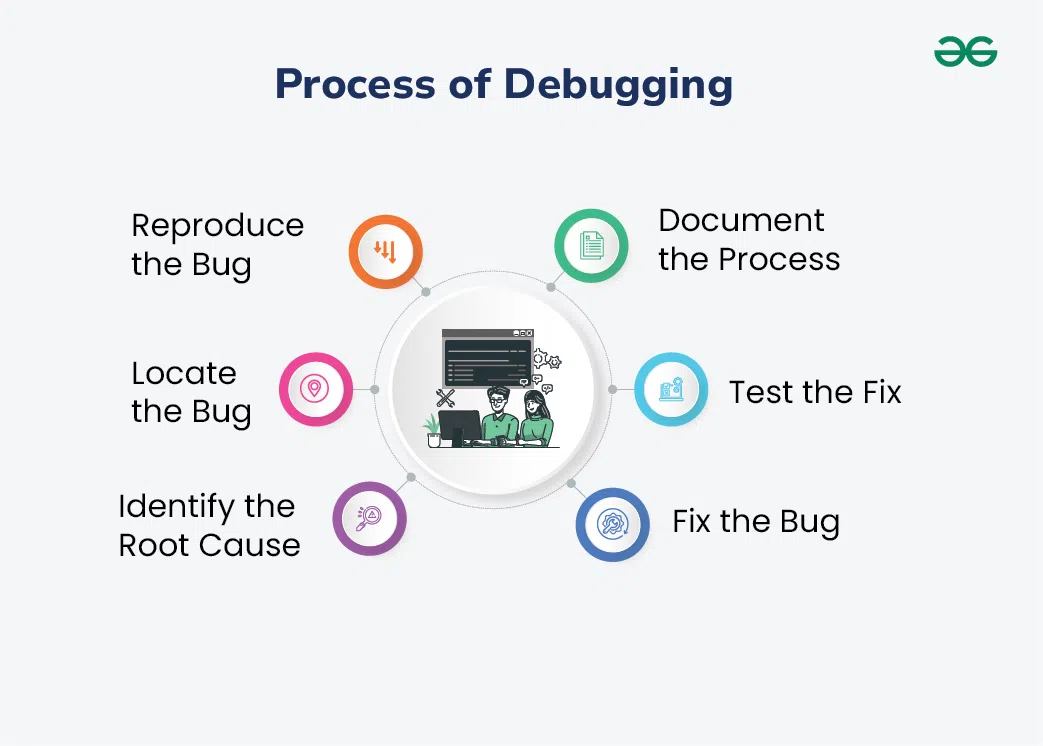
This manual approach is inefficient and frustrating. It leads to "debugging fatigue," where developers waste valuable time on routine fixes instead of building new features. The right tools automate the search for errors, turning hours of manual tracing into minutes of targeted analysis. They provide a systematic way to pause execution, inspect variables, and understand the state of your application at the exact moment something breaks.
Investing in these tools pays off immediately. When you can quickly pinpoint the root cause of an issue, you reduce downtime, improve code quality, and keep your team focused on solving problems rather than hunting for them. In 2026, with software becoming even more complex, having a robust debugging workflow isn't just a nice-to-have; it's essential for shipping reliable software efficiently.
Top IDE recommendations for 2026
Your Integrated Development Environment (IDE) is where most debugging happens. It’s the command center where you write, run, and fix code. In 2026, the best debugging tools are built directly into these environments, saving you from switching between apps.
We focus on three industry standards: Visual Studio Code, IntelliJ IDEA, and Visual Studio. Each serves a different primary use case, but all offer robust debugging capabilities that can catch errors before they reach production.
Visual Studio Code
VS Code remains the most popular editor for web development and scripting. Its lightweight nature means it starts fast, but its debugging power comes from extensions. The built-in debugger supports JavaScript, TypeScript, Python, and Go out of the box.
For debugging, VS Code lets you set breakpoints, step through code, and inspect variables in real-time. The integrated terminal allows you to run commands without leaving the editor. If you work with multiple languages, the extension marketplace ensures you have the right debugger for each one.
IntelliJ IDEA
IntelliJ IDEA is the go-to choice for Java and Kotlin developers. It offers deep code analysis that goes beyond simple syntax checking. The debugger is tightly integrated with the IDE’s refactoring tools, allowing you to fix issues while understanding their impact on the larger codebase.
IntelliJ’s debugging features include smart step-into, which helps you navigate into specific methods without getting lost in framework code. It also provides visual representations of memory usage and thread states, making it easier to spot performance bottlenecks alongside logical errors.
Visual Studio
Visual Studio is the heavyweight champion for .NET and C++ development. It offers the most comprehensive debugging experience for enterprise applications. The debugger can attach to live processes, allowing you to diagnose issues in running applications without restarting them.
For C++ developers, Visual Studio provides native debugging with support for complex memory management issues. The IntelliTrace feature records application events, allowing you to rewind and replay code execution to see exactly what led to an error. This is invaluable for debugging intermittent issues that are hard to reproduce.
Comparison of Key IDEs
The table below compares these three IDEs based on their primary strengths and debugging depth.
| IDE | Primary Language | Debugging Depth | Price |
|---|---|---|---|
| Visual Studio Code | JavaScript, Python, Go | High (via extensions) | Free |
| IntelliJ IDEA | Java, Kotlin | Very High | Paid (Free Community Edition) |
| Visual Studio | C#, C++, .NET | Very High | Paid (Free Community Edition) |
Specialized debugging tools for specific tasks
Relying solely on your IDE’s built-in debugger is like trying to fix a watch with a hammer. It works for simple logic errors, but it falls apart when you need to inspect network traffic, analyze memory leaks, or debug low-level system crashes. Different problems require different instruments, and having a specialized tool for each layer of your stack makes troubleshooting significantly faster.
Chrome DevTools for frontend issues
Frontend development introduces a unique set of challenges: rendering glitches, CSS conflicts, and JavaScript performance bottlenecks. Chrome DevTools is the industry standard for a reason. It allows you to inspect the DOM in real-time, monitor network requests to identify slow APIs, and profile JavaScript execution to find memory leaks. While other browsers have similar tools, Chrome’s implementation is the most mature and widely documented, making it the go-to choice for frontend debugging.
Postman for API debugging
When your frontend works but the data doesn’t, the issue usually lies in the API. Postman simplifies this by allowing you to send manual requests, inspect headers, and view response bodies in a clean interface. Instead of writing cURL commands or relying on browser network tabs, you can save common requests, automate tests, and share collections with your team. It bridges the gap between frontend and backend, ensuring that your endpoints return exactly what your application expects.
WinDbg for low-level system analysis
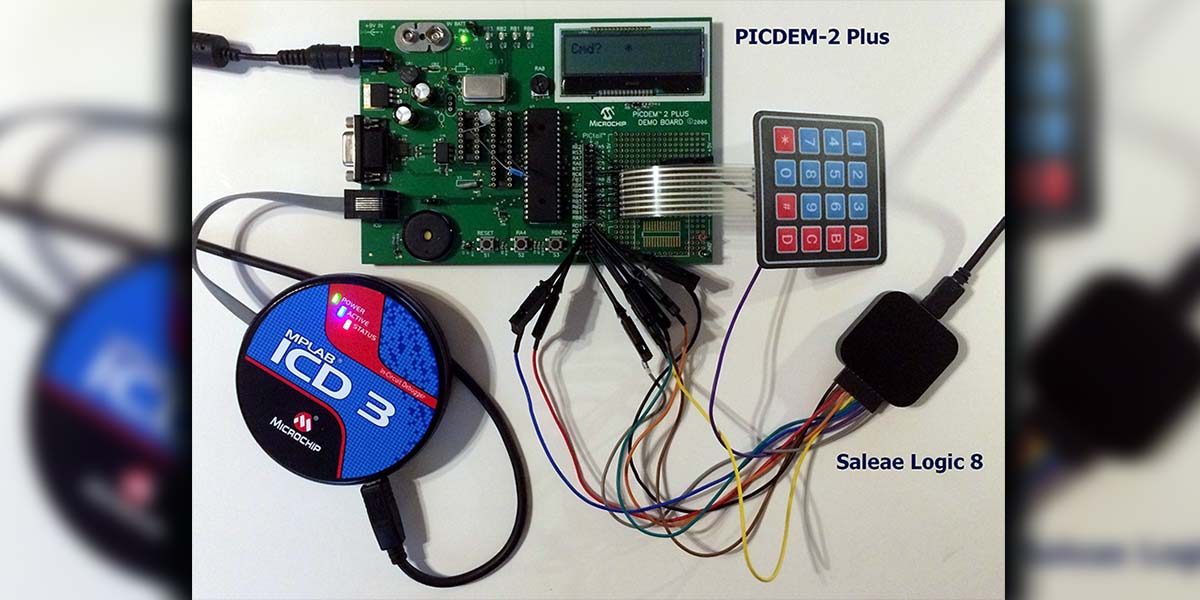
For issues that crash your entire application or even the operating system, standard debuggers often lack the depth needed. WinDbg is a powerful debugger from Microsoft designed for analyzing crash dumps, debugging live user-mode and kernel-mode code, and examining CPU registers and memory. It is essential for developers working on drivers, system services, or complex performance issues that require looking under the hood at how the OS handles your code.

As an Amazon Associate, we may earn from qualifying purchases.
How to choose the right debugging tool
Picking a debugger shouldn’t feel like buying a used car. You don’t need the most expensive option, but you do need one that fits your current stack and workflow. A tool that’s perfect for a solo Python developer might be overkill—and confusing—for a C++ systems engineer.
Start by matching the tool to your language. If you’re building web apps, Chrome DevTools is non-negotiable. For general-purpose coding, Visual Studio Code has become the default for many because it handles JavaScript, Python, and Go with equal ease. If you’re working with C or C++, you’ll likely need something deeper like WinDbg or GDB, which can analyze crash dumps and memory at a low level.
Next, consider your team’s size and budget. Solo developers can often get away with free, command-line tools. But if you’re on a team, integration matters. Does the debugger plug into your existing IDE? Can it sync with your error tracking service? A tool that requires five clicks to set up will slow everyone down.
Finally, look at the learning curve. Some tools, like PyCharm’s debugger, offer visual breakpoints that are easy to grasp. Others require memorizing commands. Choose a tool your team can actually use today, not one you’ll spend weeks mastering.
Ensure the tool supports your primary language. Chrome DevTools is essential for frontend work, while WinDbg is the standard for Windows kernel debugging. Don’t fight your stack.
Does it work inside your editor? Tools like VS Code and PyCharm offer built-in debugging, saving you from switching contexts. Seamless integration reduces friction and keeps you in the flow.

Look for visual aids like breakpoints and variable watches. If a tool requires memorizing dozens of CLI commands, it might slow down junior developers. Choose something your team can adopt quickly.

Solo developers might prefer free, lightweight tools. Teams often need robust features like remote debugging or cloud sync. Check if the tool scales with your headcount without breaking the bank.
Frequently asked questions about debugging tools
What are the best free debugging tools for developers?
You don’t need a paid license to debug effectively. Visual Studio Code (VSCode) offers a robust, free debugger for most languages. Chrome DevTools is the standard for frontend issues, and tools like WinDbg provide powerful kernel-level debugging for Windows environments without cost.
Should I use an IDE debugger or a standalone tool?
It depends on your workflow. IDE debuggers in PyCharm or VSCode are great for stepping through code line-by-line in your editor. Standalone tools like Postman are better for isolating API issues, while CLI tools like GDB are essential for low-level C/C++ memory debugging where an IDE might be too heavy.
How do I choose the right tool for my language?
Match the tool to the stack. Use Chrome DevTools for JavaScript and CSS. Pick Postman for REST API testing. For Python, the built-in debugger in VSCode or PyCharm works well. For C or C++, GDB or WinDbg are industry standards for handling memory leaks and crashes.

No comments yet. Be the first to share your thoughts!