Choose the Right IDE for Your Stack
Selecting an integrated development environment (IDE) or editor is the first step in building an effective debugging workflow. The right tool reduces friction when stepping through code, inspecting variables, and analyzing stack traces. Since debugging needs vary significantly by language, there is no single "best" editor for everyone. Instead, match your primary language to an environment with deep, native debugger support.
For general-purpose and web development, Visual Studio Code (VS Code) remains the dominant choice. Its lightweight architecture and vast extension ecosystem allow developers to add specific debuggers for Python, JavaScript, C++, and Go as needed. Chrome DevTools is equally essential for frontend work, offering a dedicated environment for inspecting DOM elements, network requests, and JavaScript execution contexts directly in the browser.
If you work primarily in the Java or .NET ecosystems, JetBrains IDEs like IntelliJ IDEA or Visual Studio provide more robust, out-of-the-box debugging features. These environments understand complex type systems and project structures better than generic editors, allowing for smarter breakpoints and variable inspection without extensive configuration.
The following table compares the three most common environments to help you decide where to start.
| Environment | Best For | Debugger Depth | Cost |
|---|---|---|---|
| Visual Studio Code | Web, Python, JS, Go | High (via extensions) | Free |
| JetBrains IntelliJ | Java, Kotlin, Scala | Very High (Native) | Paid (Free Community) |
| Visual Studio | .NET, C++, C# | Very High (Native) | Paid (Free Community) |
For beginners, starting with VS Code and Chrome DevTools is often the least intimidating path. These tools have extensive documentation and community support, making it easier to learn debugging fundamentals like setting breakpoints and stepping over code lines. As your projects grow in complexity, you may find that specialized IDEs like IntelliJ or Visual Studio offer the performance and context-awareness required for larger codebases.
Browser-native debugging tools
Frontend errors are the most visible to users, making browser-based debugging the first line of defense. Chrome DevTools and Microsoft Edge DevTools are built directly into their respective browsers, providing a unified interface for inspecting the DOM, monitoring network requests, and analyzing JavaScript execution. Because these tools are native to the browser, they offer the most accurate representation of how your code is actually rendering and performing in the user's environment.
The Elements panel allows you to inspect the live DOM tree and modify styles in real-time, helping you isolate CSS conflicts or layout issues without restarting the server. The Console panel is equally critical; it displays JavaScript errors, warnings, and log outputs, allowing you to trace the exact line of code where an exception occurred. For network-heavy issues, the Network tab lets you filter requests by type, check response headers, and verify that assets are loading correctly.
To streamline your workflow, you can set breakpoints directly in the Sources panel to pause execution at specific lines of code. This lets you inspect variable states and step through functions line-by-line, which is invaluable for understanding complex logic flows. While third-party extensions exist, the native tools cover the vast majority of frontend debugging needs without adding overhead or compatibility risks.
- Open DevTools by pressing F12 or right-clicking and selecting Inspect.
- Use the Console to check for red error messages and warnings.
- Switch to the Network tab to verify asset loading and API responses.
- Set breakpoints in the Sources panel to pause and inspect variables.
Backend and system-level debuggers
Standard IDE debuggers handle application logic well, but they often stumble when memory corruption, race conditions, or kernel-level issues enter the picture. For backend services and systems programming, you need tools that can inspect the raw state of the machine.
GDB (GNU Debugger)
GDB remains the workhorse for C and C++ developers on Linux and macOS. It allows you to attach to running processes, set breakpoints, and inspect memory addresses directly. While the command-line interface feels dated, its ability to handle core dumps and multi-threaded applications makes it indispensable for backend debugging. It is open-source, lightweight, and available on almost every Unix-like system.
LLDB
LLDB is the modern alternative to GDB, developed by the LLVM project. It is the default debugger in Xcode and is increasingly becoming the standard for Clang-based workflows. LLDB offers a Python scripting interface that makes it easier to automate complex debugging tasks compared to GDB’s older command syntax. It handles C++, Swift, and Rust with equal ease, providing a more responsive experience for large codebases.
WinDbg
For Windows backend development, WinDbg is the definitive tool. It integrates with the Windows Debugging Tools for Windows SDK to analyze crash dumps and kernel-mode drivers. WinDbg excels at memory analysis, allowing developers to reconstruct the state of a program at the exact moment of a crash. Its extension ecosystem, including SOS for .NET debugging, makes it a powerful choice for enterprise-level Windows applications.
Lauterbach TRACE32
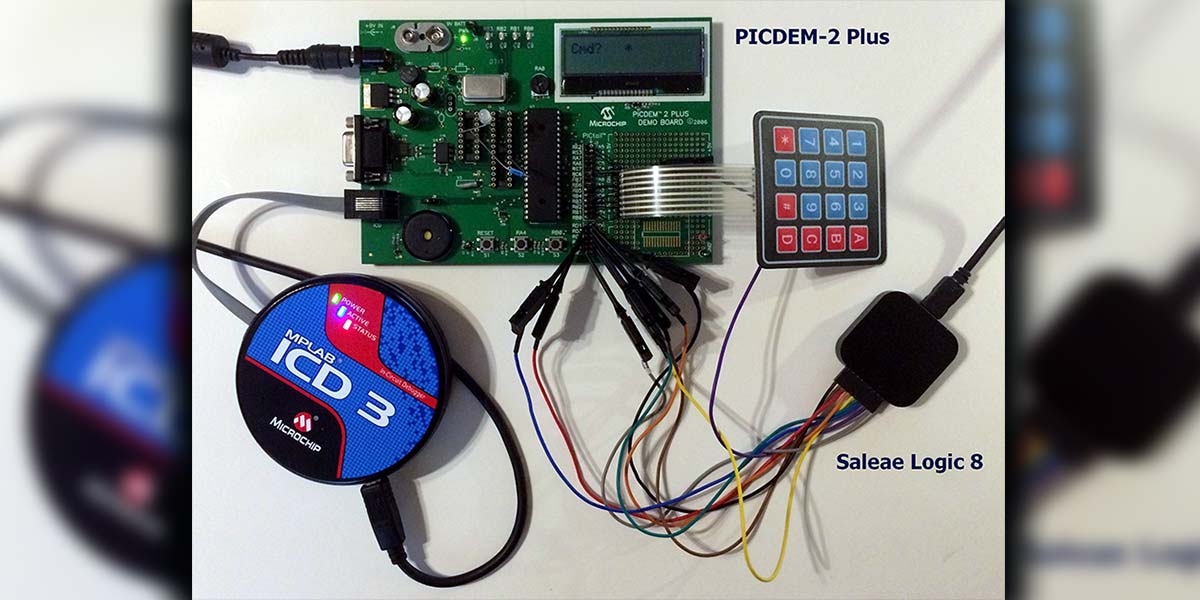
Embedded systems and high-performance computing often require hardware-assisted debugging. Lauterbach TRACE32 connects directly to the target hardware via JTAG or SWD, capturing execution traces without slowing down the system. This tool is essential for debugging real-time operating systems and embedded C code where software debuggers introduce too much latency. It is a professional-grade solution used in automotive, aerospace, and IoT development.
OpenOCD
Open On-Chip Debugger (OpenOCD) bridges the gap between host computers and embedded targets. It is a cross-platform open-source software tool for in-system programming and debugging of ARM, RISC-V, and other embedded processors. OpenOCD works in tandem with GDB or LLDB, allowing developers to debug embedded code from their desktop IDE. It is a critical component for anyone working with microcontrollers or custom hardware boards.
API and network debugging utilities
When your code runs locally but fails in production, the problem usually lives in the request lifecycle. You need tools that sit between your application and the server, capturing the exact headers, payloads, and latency metrics that standard logs miss. These utilities let you replay failed requests, inspect binary responses, and simulate network conditions without changing your source code.
Postman remains the industry standard for API debugging. It allows you to build complex request chains and store environments for different stages of development. The interface lets you inspect response times and body structures side-by-side, making it easier to spot schema mismatches or missing headers. For developers who prefer a code-first approach, VS Code’s REST Client extension offers a lightweight way to send HTTP requests directly from .http files, keeping the workflow inside your editor.
For deeper network inspection, tools like Charles Proxy or Fiddler act as a man-in-the-middle proxy. They intercept HTTPS traffic between your machine and the server, decrypting the SSL/TLS layer so you can read the actual JSON or XML payloads. This is essential when debugging third-party integrations or mobile apps that use certificate pinning, as these tools allow you to override security checks temporarily to see the raw data flow.
Automated error tracking and monitoring
Shifting from reactive debugging to proactive monitoring changes how you handle production incidents. Instead of waiting for users to report bugs, these tools capture errors in real time, providing the stack traces and context needed to fix issues before they escalate.
Sentry stands out as the industry standard for automated error root cause tracking. It integrates directly with your codebase to aggregate exceptions, group similar errors, and assign severity levels. This allows engineering teams to prioritize fixes based on actual user impact rather than guessing which bug matters most.
For mobile applications, Instabug offers a specialized approach by combining crash reporting with in-app feedback. It captures device state, network logs, and user actions leading up to an error, providing a complete picture of the bug from the user's perspective. This is particularly useful for reproducing intermittent issues that are difficult to catch in staging environments.
While these tools require a subscription, they are essential for maintaining application stability at scale. They transform debugging from a chaotic fire-fighting exercise into a structured, data-driven process.
Hardware That Keeps You in the Flow
Debugging is often a battle against context switching. When you have to alt-tab constantly or squint at a cramped terminal, you lose the thread of logic. The right hardware setup minimizes friction, keeping your focus on the code rather than the interface. A well-organized desk acts as an extension of your IDE, reducing the physical toll of long debugging sessions.
Start with input devices that support high-precision tracking. A mouse with customizable buttons can map common debugging actions, while a mechanical keyboard with clear tactile feedback helps maintain rhythm during intense coding sprints. These tools don't write the code, but they remove the barriers between your intent and the editor.
Display real estate is equally critical. A wide monitor or a dual-screen setup allows you to keep the debugger, console, and documentation open simultaneously. This spatial separation prevents the constant window management that fractures attention. If your desk space is limited, a high-resolution single display or a portable secondary screen can still provide the necessary horizontal space for side-by-side analysis.
The following accessories are proven staples for developers who spend hours tracing bugs. These items focus on ergonomics and connectivity, ensuring your hardware supports your workflow rather than hindering it.


As an Amazon Associate, we may earn from qualifying purchases.
Which debugger works best for beginners?
For new developers, the best starting point is usually Chrome DevTools or a built-in IDE debugger like Visual Studio Code’s integrated debugger. These tools offer visual interfaces that make stepping through code and inspecting variables intuitive, reducing the initial friction of command-line interfaces.
Chrome DevTools is particularly effective for web development, allowing you to pause execution directly in the browser. For general-purpose languages, VS Code provides a seamless experience without requiring complex setup. As skills grow, transitioning to command-line tools like GDB becomes natural, but starting with visual aids builds confidence faster.

No comments yet. Be the first to share your thoughts!