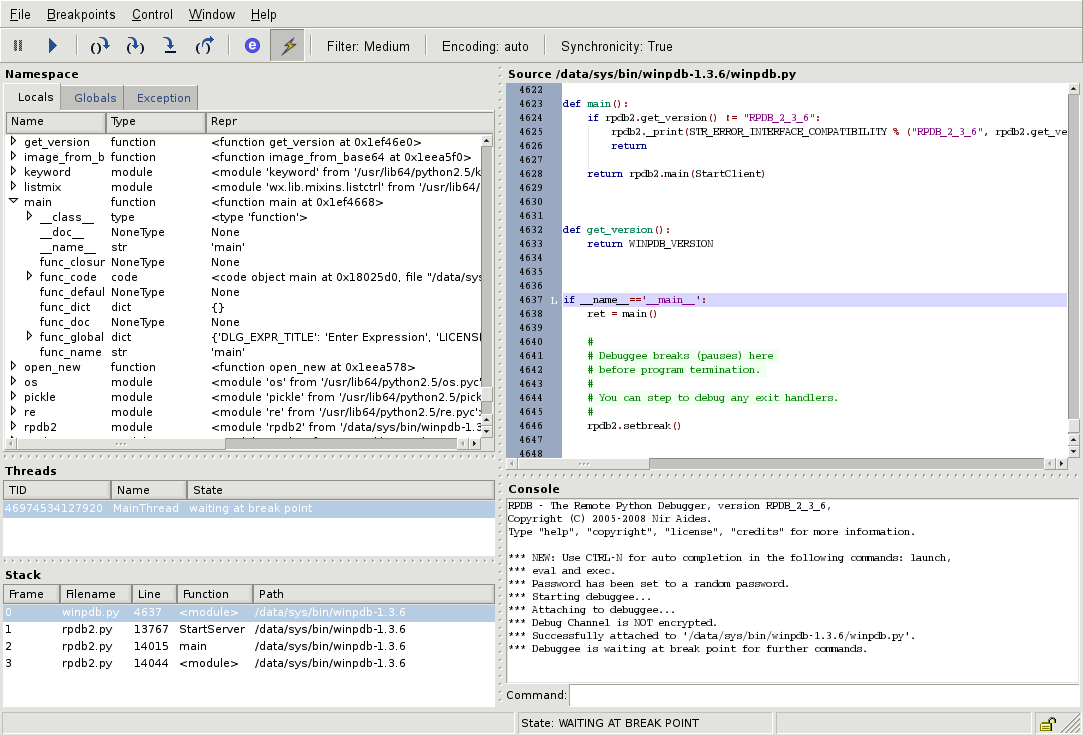
Pick the right debugger for your stack
Debugging isn't a one-size-fits-all problem. The tool that saves you hours in a Python backend will likely frustrate you when you're trying to fix a CSS layout issue in the browser. Instead of hunting for a single "best" tool, you should match the debugger to the specific environment and language you are working in.
For general-purpose development, Visual Studio Code remains the most versatile choice. Its integrated debugger handles JavaScript, Python, C++, and many other languages through extensions, allowing you to set breakpoints and inspect variables without leaving your editor. It’s the Swiss Army knife for developers who juggle multiple projects.
When working with .NET, JetBrains ReSharper offers deep integration with Visual Studio, providing intelligent code analysis and debugging features that understand the nuances of C# and VB.NET. Meanwhile, Python developers often prefer PyCharm, which comes with a robust debugger out of the box, making it easier to trace execution flow and inspect complex data structures in backend applications.
For web developers, the browser itself is often the most powerful debugger. Chrome DevTools allows you to inspect the DOM, monitor network requests, and debug JavaScript in real-time. Since most user-facing code runs in the browser, having these tools at your fingertips is essential for identifying frontend bugs quickly.
Visual Studio Code and modern IDEs
For most web and application developers, the Integrated Development Environment (IDE) is the primary debugging interface. Instead of juggling separate command-line tools, modern editors bundle debugging capabilities directly into the workflow. This integration allows you to set breakpoints, step through code line-by-line, and inspect variables without ever leaving your editor window.
Visual Studio Code (VS Code) has become the standard for this approach. Its lightweight architecture and vast extension marketplace mean you can debug JavaScript, Python, Go, and many other languages using a unified interface. The built-in debugger supports variable inspection and call stack navigation, making it a versatile choice for full-stack projects.
Other IDEs like PyCharm and IntelliJ IDEA offer similar deep integration, particularly for their respective ecosystems. While they may feel heavier than VS Code, they provide sophisticated analysis for large, complex codebases. Choosing between them often comes down to your primary language and whether you prefer a lightweight editor or a feature-rich suite.
Comparing IDE Debugging Features
| Feature | Visual Studio Code | PyCharm | IntelliJ IDEA |
|---|---|---|---|
| Breakpoint Support | Visual, conditional, and logpoints | Standard and conditional | Standard and conditional |
| Variable Inspection | Hover tooltips, Watch window | Evaluate Expression, Watches | Watches, Variables view |
| Primary Languages | JavaScript, Python, Go, TypeScript | Python | Java, Kotlin, Groovy |
| Extension Ecosystem | Extensive marketplace | Limited (built-in plugins) | Limited (built-in plugins) |
Checklist for IDE Debugging Setup
-
Install the latest version of your chosen IDE.
-
Add language-specific extensions (e.g., Python, JavaScript).
-
Configure launch.json or run configurations for your project.
-
Test a simple breakpoint to verify the debugger attaches correctly.
Browser DevTools for frontend debugging
Use this section to make the Best Debugging Tools for decision easier to compare in real life, not just on paper. Start with the reader's actual constraint, then separate must-have requirements from details that are merely nice to have. A practical choice should survive normal use, maintenance, timing, and budget. If a recommendation only works in an ideal situation, call that out plainly and give the reader a fallback path.
The simplest way to use this section is to write down the must-have criteria first, then compare each option against those criteria before weighing nice-to-have features.
CLI debuggers for low-level control
When IDE visualizers aren't enough, command-line debuggers step in. These tools give you direct access to memory, registers, and the kernel itself. They are the standard for developers working on embedded systems, operating systems, or performance-critical applications where you need to see exactly what the hardware is doing.
GDB (GNU Debugger)
GDB is the default choice for C and C++ development on Linux and macOS. It is free, open-source, and deeply integrated into the GCC toolchain. You can set breakpoints, inspect variable values in real-time, and trace execution flow line by line. Its strength lies in its ubiquity; if you are writing code that runs on a Unix-like system, GDB is likely already installed.
WinDbg
For Windows developers, WinDbg is the go-to tool from Microsoft. It is powerful enough to debug live user-mode applications and dive deep into kernel-mode code. You can use it to analyze crash dumps after a system failure, helping you pinpoint the exact line of code or driver that caused a blue screen. It is essential for anyone building Windows drivers or investigating complex system crashes.
LLDB
LLDB is the modern debugger used by the Clang compiler and the Xcode IDE on macOS. It is designed to be fast and modular, making it a strong alternative to GDB for Swift and C++ projects. If you are developing for iOS or macOS, LLDB offers a smoother experience with better support for Swift's complex type system, while still providing the low-level control needed for serious debugging.
API and network debugging essentials
When your frontend looks perfect but the backend is throwing errors, the problem usually lives in the data moving between the two. This is where API and network debugging tools become indispensable. They let you inspect the actual requests and responses, so you can see exactly what the server sent back and what your application sent out.
Postman remains the gold standard for this workflow. It allows you to save, organize, and replay API requests with a user-friendly interface that feels more like a spreadsheet than a code editor. You can set up environment variables for different stages (like staging vs. production) and write small scripts to validate responses automatically. It’s particularly useful when you need to test complex authentication flows or share test cases with a team.
For quick, on-the-fly checks, HTTPie is a command-line alternative that is much easier to read than cURL. It colorizes the output, making it simple to spot JSON structures or error messages in your terminal. It’s a favorite among developers who prefer staying in the CLI and need to verify an endpoint’s behavior without spinning up a full UI test.


As an Amazon Associate, we may earn from qualifying purchases.
Finally, never underestimate the browser’s built-in Network tab. It’s the first place you should look when a page fails to load data. You can filter requests by XHR or Fetch, view headers in real-time, and even reproduce specific network calls directly from the interface. It’s a lightweight, zero-install solution that catches 90% of connectivity issues before they become deeper bugs.
Debugging tools to buy or install
Best Debugging Tools for works best when the purchase path is explicit. Verify the source, compare the offer against real alternatives, check the total cost, and confirm what happens after payment before you decide. After each comparison, write down the one risk that would change your mind. If the seller, condition, support, warranty, shipping, or upkeep still feels uncertain, resolve that question before moving to checkout.
The simplest way to use this section is to verify the seller, compare the total cost, and resolve the biggest risk before you commit.
What are ICT debugging tools?
When you see "ICT debugging tools" in search results, it usually refers to the built-in features in Integrated Development Environments (IDEs) like Visual Studio, Eclipse, and PyCharm. These aren't separate, standalone apps; they are the "debug mode" built right into your coding workspace.
Think of this mode as a pause button for your code. Instead of guessing where an error is hiding, you can run your program step-by-step. You can set breakpoints to stop execution at specific lines and inspect the state of variables and memory in real-time. This turns a frustrating guessing game into a systematic investigation, letting you see exactly how data flows through your application.

No comments yet. Be the first to share your thoughts!